
Magento Standard Checkout plugin
The Magento Standard Checkout plugin lets you accept card payments directly within Magento checkout, offer Apple Pay on supported browsers and devices, and expose selected Alternative Payment Methods through Viva Smart Checkout.
- Overview
- Before you start
- Setup instructions
- Refunds
- Multisite and configuration scope
- Troubleshooting
- Upgrading the plugin
- Get Support
Overview
Requirements
- PHP: 8.2 or later.
- Magento: Magento Open Source 2.4.7+ or Adobe Commerce 2.4.7+
- Checkout currencies: EUR, GBP, RON, PLN, CZK, HUF, SEK, DKK.
Features
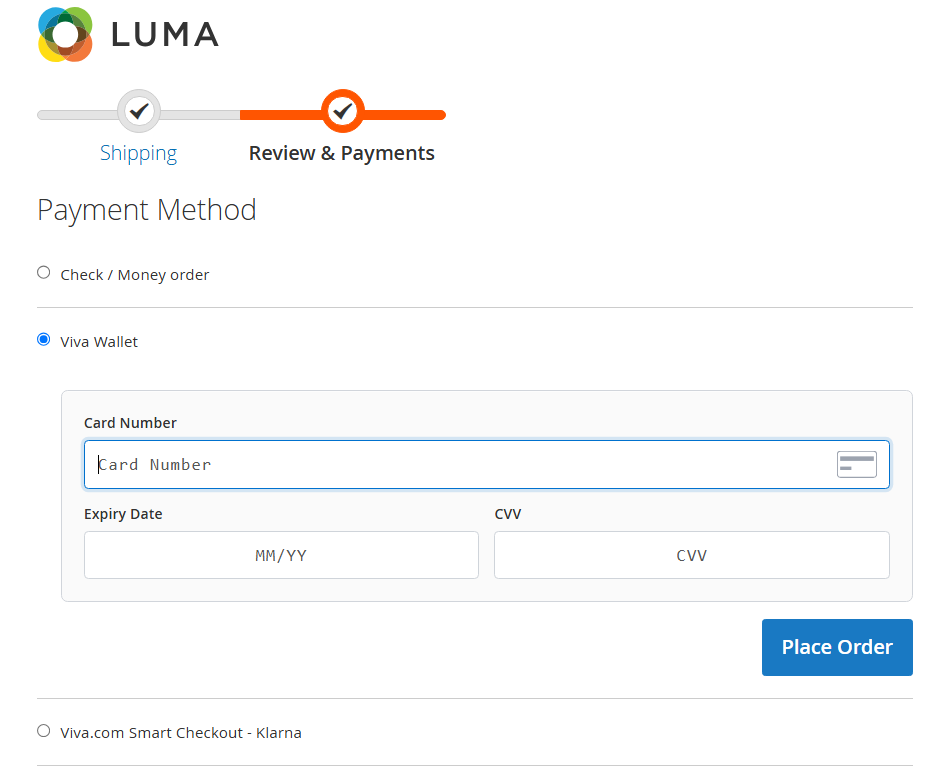
- Embedded card payments: customers enter their card details on the Magento checkout page. The browser obtains a one-time Viva charge token before Magento submits the payment to Viva.
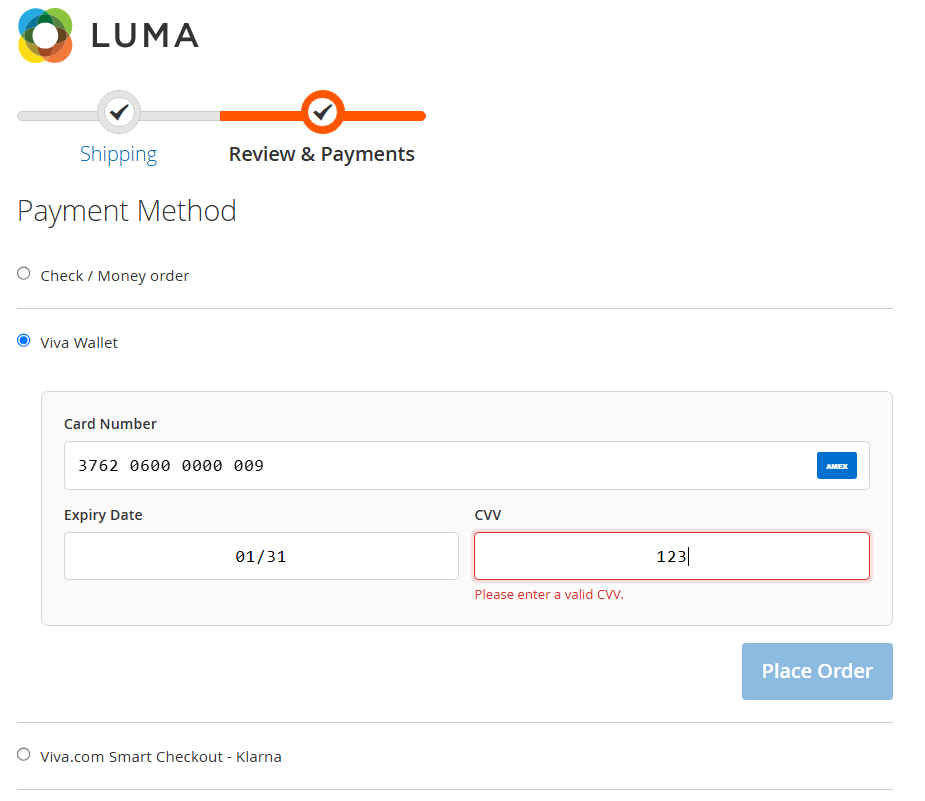
- Real-time card validation: the checkout validates card number format, Luhn checksum, expiry date and CVV length while the customer types. It also detects supported card schemes and displays the matching scheme icon.
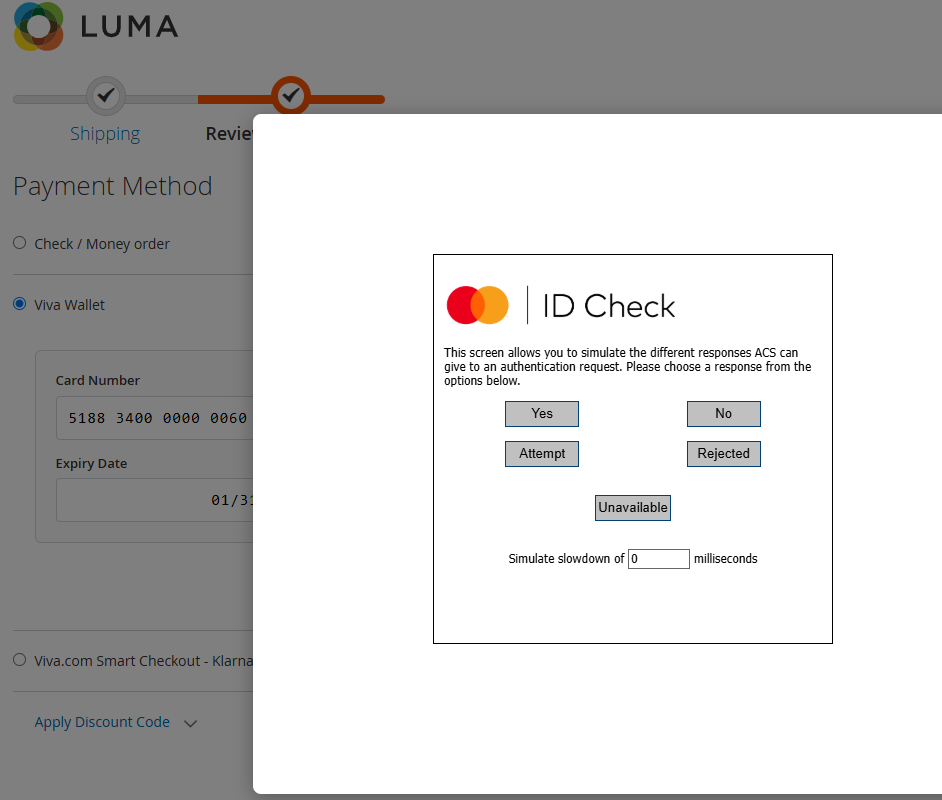
- 3D Secure: when authentication is required, the Viva 3D Secure flow is displayed in a modal on the checkout page.
- Pre-selected card method: the card method can be selected automatically when the payment step opens. This is enabled by default and can be disabled in Magento Admin.
- Decline messages: Viva event IDs are mapped to customer-friendly messages.
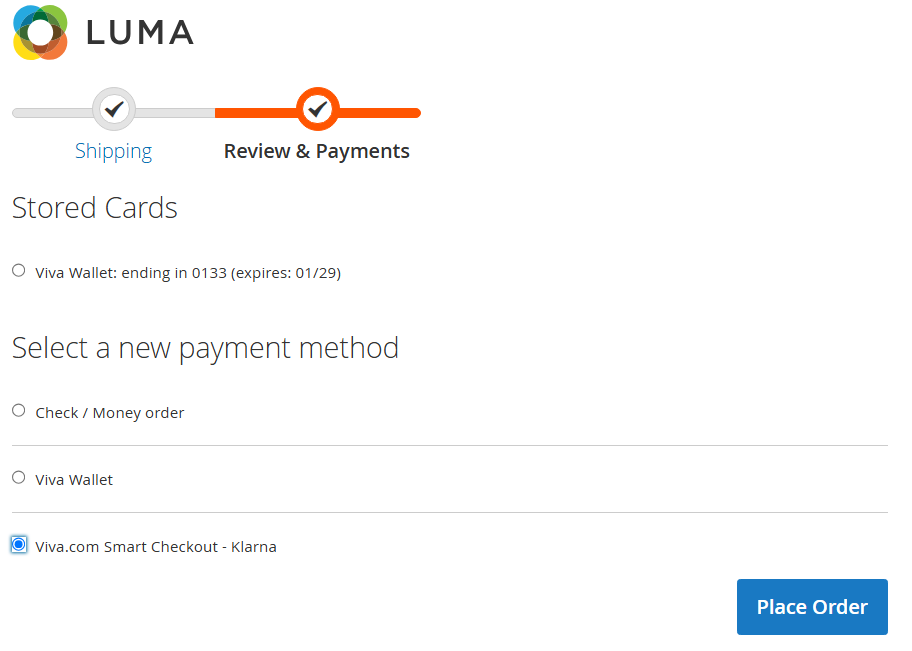
- Alternative Payment Methods: supported APMs are presented as separate Magento payment methods. Each method has its own enable setting, title, sort order and country restriction.
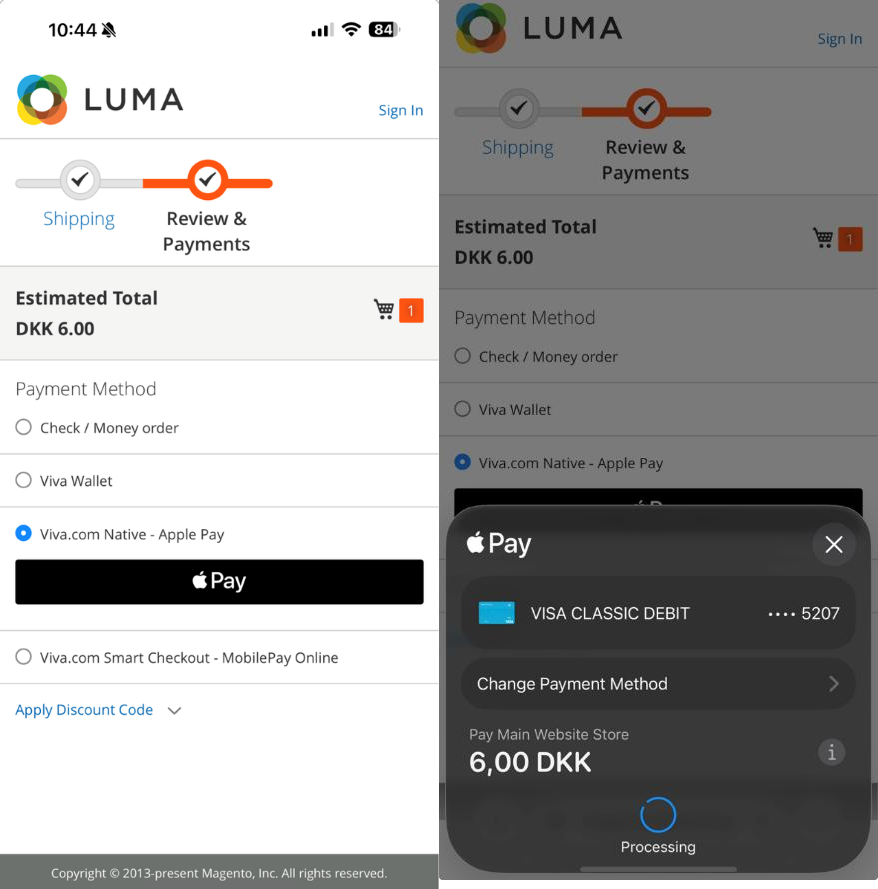
- Native Apple Pay: Apple Pay is shown as a separate Magento payment method when the browser and device support the configured Apple Pay flow.
- Card refunds: full and partial online refunds can be initiated from Magento credit memos.
- Debug logging: API request and response details can be written to
var/log/vivawallet.logwhen Debug Mode is enabled.
User experience
Card payments are completed directly on the Magento checkout page, allowing customers to complete their purchase without leaving the store. If 3D Secure authentication is required, the authentication challenge is displayed in an inline modal, so customers can complete the verification without being redirected.
Alternative Payment Methods (APMs) follow a different flow. When a customer selects an APM, they are redirected to Viva Smart Checkout, where they can complete the payment using their selected payment method. Once the payment is completed or cancelled, the customer is redirected back to the merchant’s configured success or failure URL.
Apple Pay availability depends on several factors, including the customer’s device and browser, Apple Pay support in that environment, the merchant’s configuration, and availability in the relevant market.
Screenshots
The following image references match the customer-facing and admin areas described in this guide.
Embedded card payment form:
Real-time card validation and scheme detection:
3D Secure challenge displayed in the checkout modal:
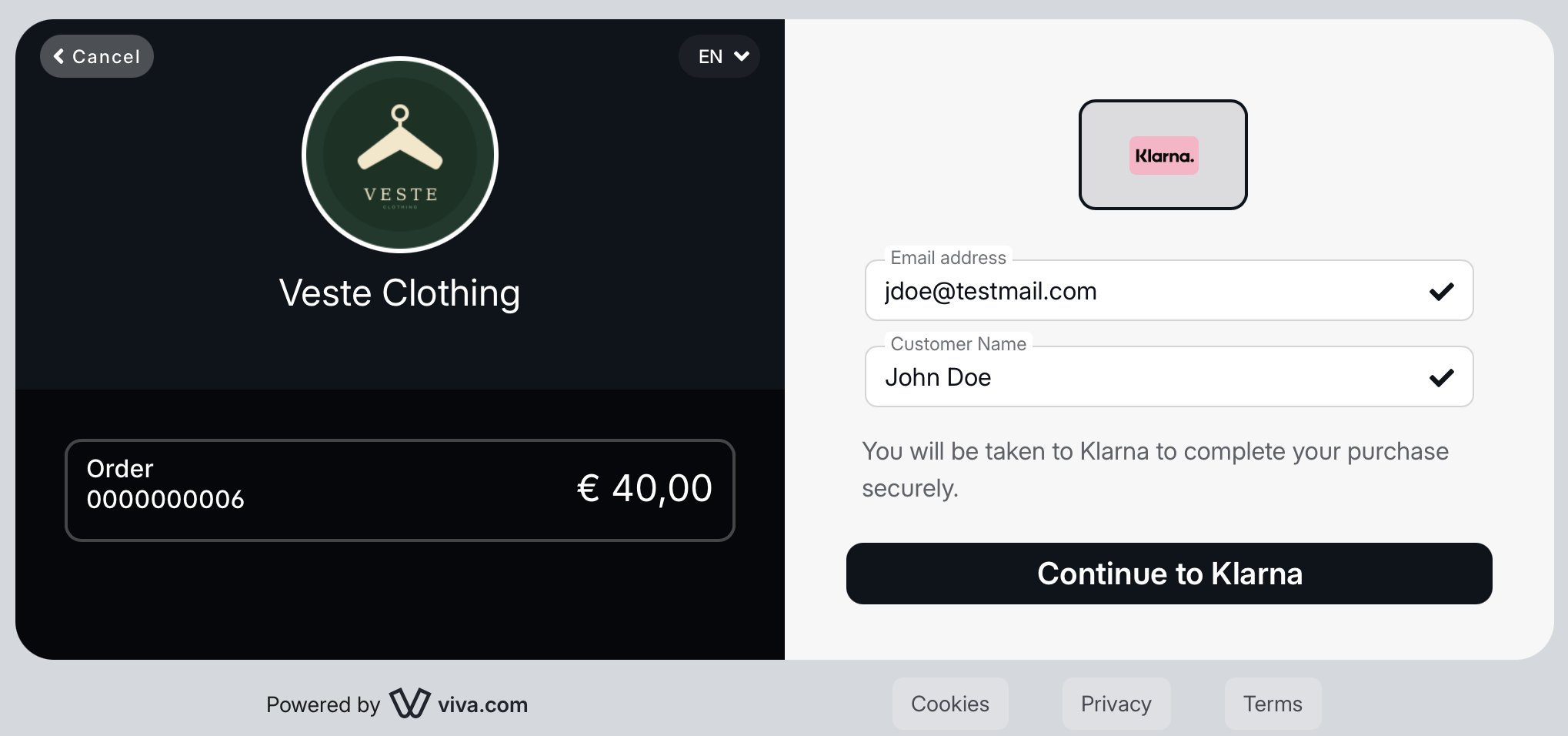
Alternative Payment Method at checkout:
Viva Smart Checkout with the selected APM:
Apple Pay at Magento checkout:
Decline message shown to the customer:

Supported payment methods
Card payments are processed through the embedded card flow. Please see available card payment methods here.
Apple Pay is available through the plugin’s native Apple Pay payment method. Browser and device availability is detected at checkout.
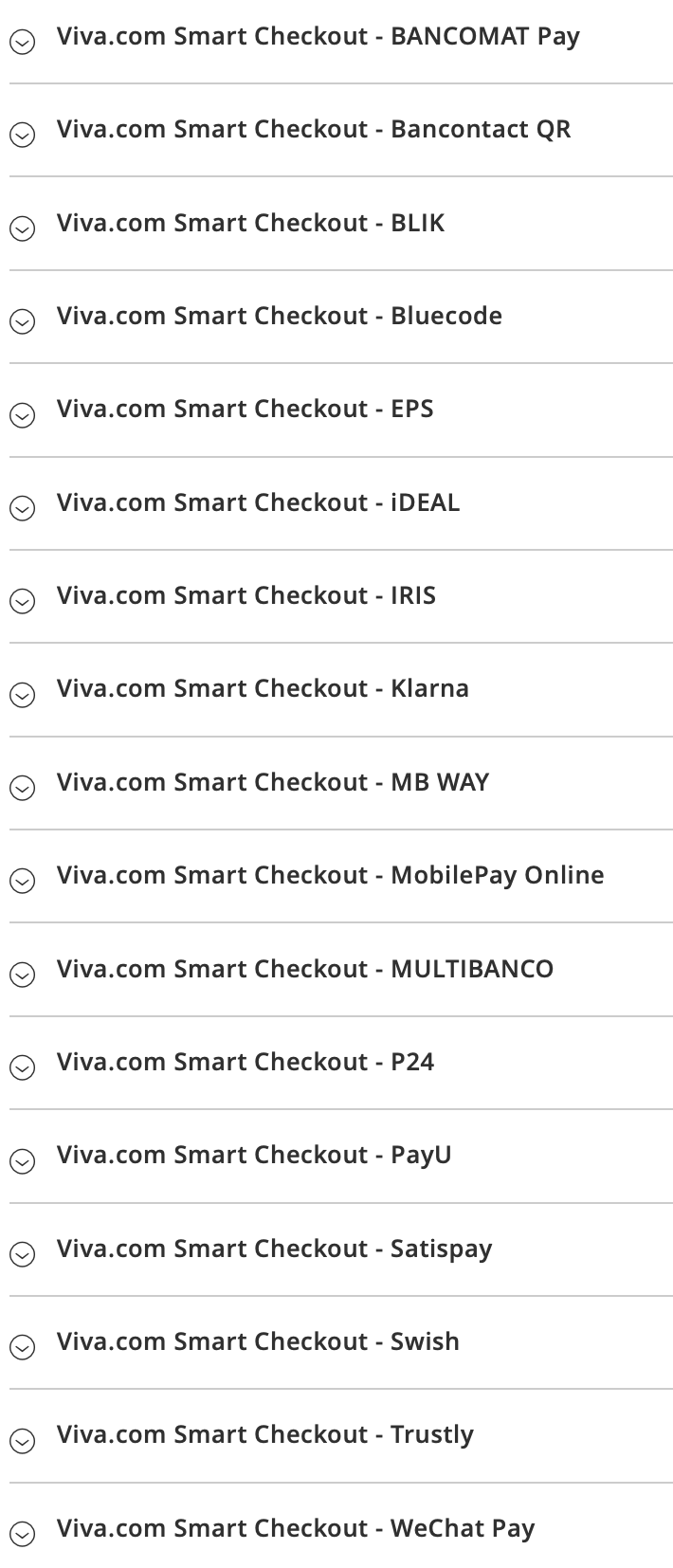
Alternative Payment Methods are offered through Viva Smart Checkout. The plugin exposes the following methods in Magento Admin:
| Alternative Payment Methods | ||
|---|---|---|
| BANCOMAT Pay | Bancontact QR | BLIK |
| Bluecode | EPS | iDEAL |
| IRIS | Klarna | MB WAY |
| MobilePay Online | MULTIBANCO | P24 (Przelewy24) |
| PayU | Satispay | Swish |
| Trustly | WeChat Pay | |
Before you start
Step 1: Create a Viva account
If you do not already have a Viva account, create an account.
- Use a sandbox/demo account for testing.
- Use a production/live account for live payments.
Step 2: Prepare your credentials
This plugin uses OAuth authentication with a Client ID and Client Secret. The credentials are configured in two separate groups:
Viva.com Magento Standard Checkout credentials
- Used for embedded card payments, acquiring operations and native Apple Pay.
- Live and demo credentials are stored separately.
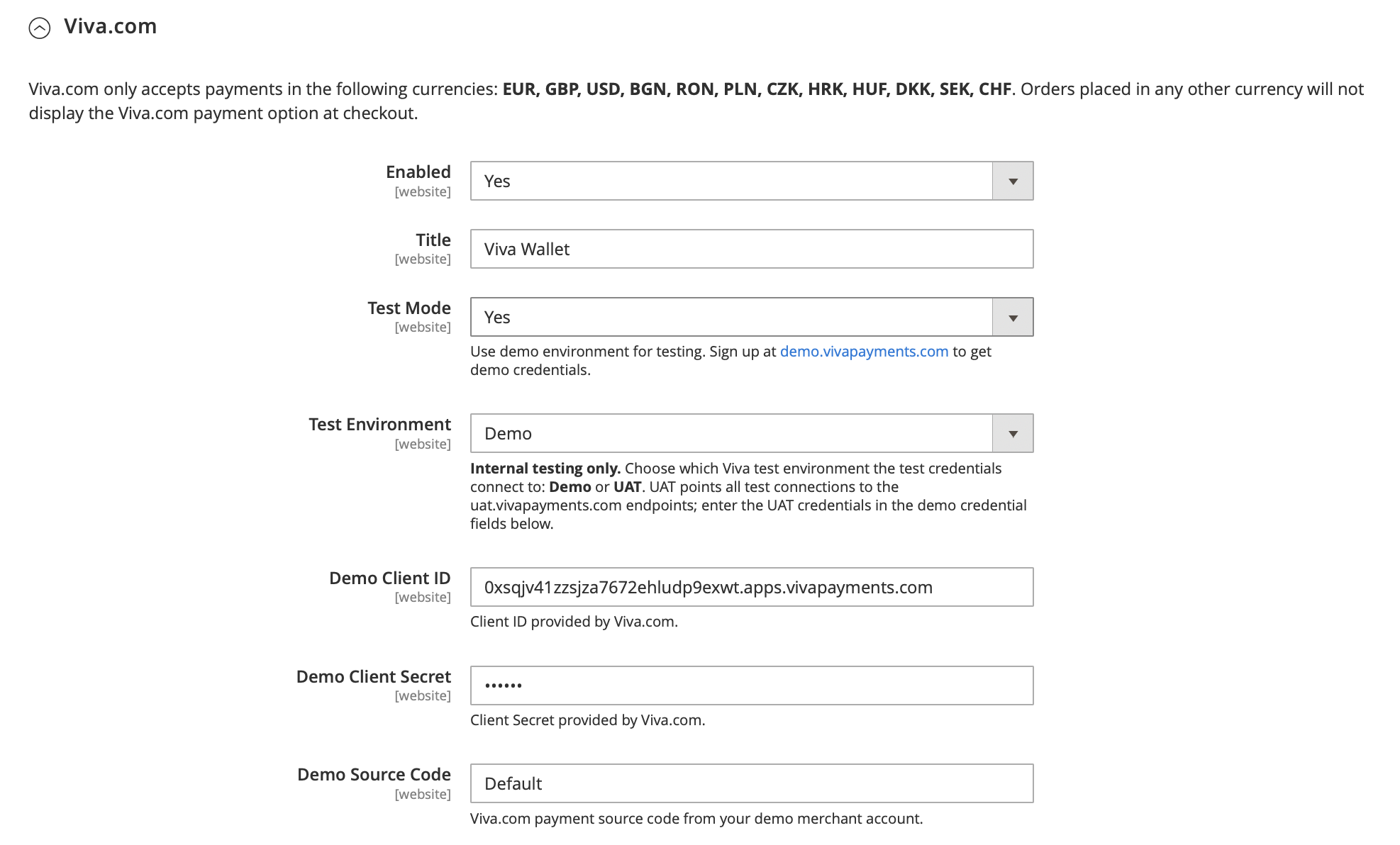
- Magento credentials are stored in the Viva.com Magento Checkout Credentials section. To learn how to obtain your Magento Checkout credentials, see this guide.
Viva.com Smart Checkout credentials
- Used for Alternative Payment Methods that redirect to Smart Checkout.
- Live and demo credentials are stored separately.
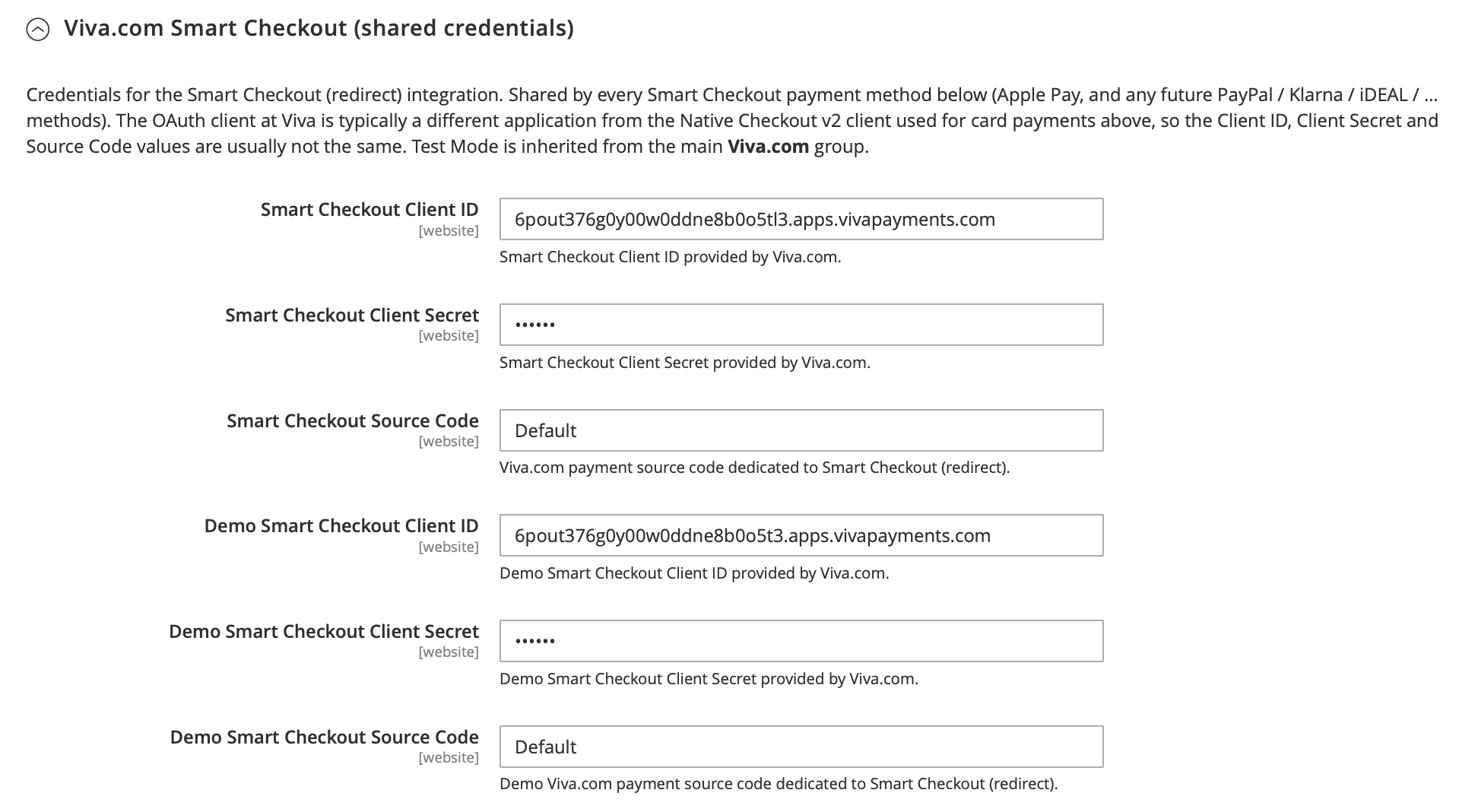
- These are stored in the Viva.com Smart Checkout Credentials section. To learn how to obtain your Smart Checkout credentials, see this guide.
The plugin uses the main Test Mode setting to switch both integrations between demo and live environments.
Step 3: Create a payment source
Follow the payment source guide to create the source or sources required for your account.
For Smart Checkout return handling, configure these URLs on the relevant online payment source:
- Success URL:
https://<your-domain>/vivawallet/payment/success - Failure URL:
https://<your-domain>/vivawallet/payment/fail
Keep the default Viva return parameter names unless you also update the plugin. The controllers expect:
sfor the payment order codetfor the transaction IDeventIdfor the Viva event ID on failures
Record the Source Code for use in Magento Admin.
Add your brand logo
You can add your company logo when you create or edit the Viva payment source. This helps customers recognise your business on Viva-hosted payment pages. See the adding your brand logo guide for the current requirements.
Step 4: Choose your payment methods
Choose the Alternative Payment Methods you want to expose in Magento and confirm that each method is activated for your Viva account and Smart Checkout source before enabling it in Magento.
Setup instructions
Step 1: Add the plugin to Magento
- Download the Magento Standard Checkout plugin.
- Extract the archive.
Copy the module directory, including
registration.php, to:app/code/Redkiwi/VivaWalletFrom the Magento root directory, run:
- Enable the module:
bin/magento module:enable Redkiwi_VivaWallet - Apply setup changes:
bin/magento setup:upgrade - Compile dependency injection:
bin/magento setup:di:compile - Flush the cache:
bin/magento cache:flush
- Enable the module:
For production deployments, deploy static content as required by your Magento deployment process:
bin/magento setup:static-content:deploy -fConfirm that Magento sees the module:
bin/magento module:status Redkiwi_VivaWallet
Step 2: Configure card payments
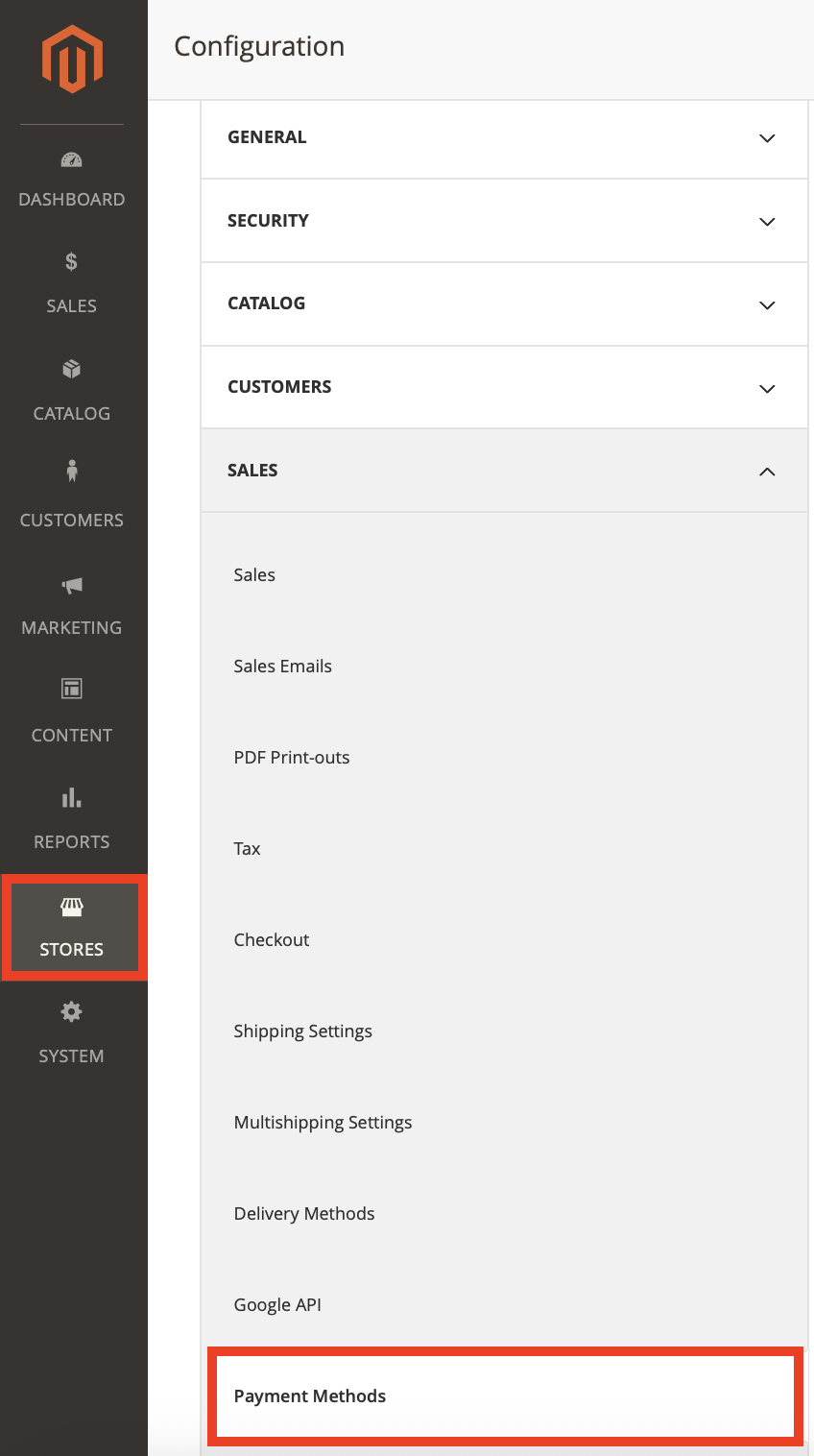
- In Magento Admin, go to Stores > Configuration > Sales > Payment Methods.
- Open the Viva.com section.
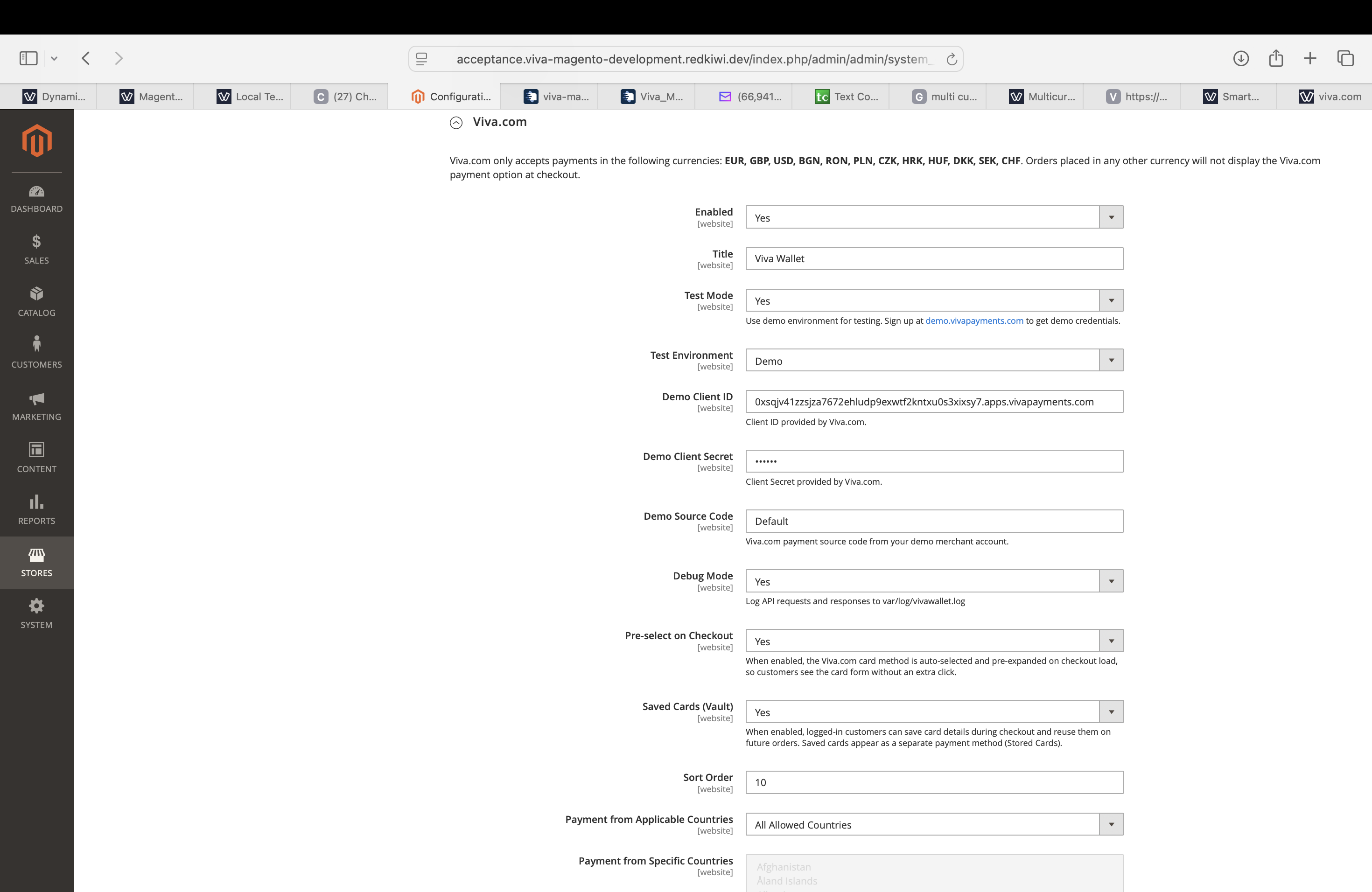
Configure the following fields:
- Enabled: Set to Yes to enable embedded card payments.
- Title: Customer-facing payment method name.
- Test Mode: Set to Yes for demo or No for live.
- Client ID / Client Secret: Live OAuth credentials used when Test Mode is disabled.
- Demo Client ID / Demo Client Secret: Demo OAuth credentials used when Test Mode is enabled.
- Source Code: Live Viva payment source code.
- Demo Source Code: Demo Viva payment source code.
- Debug Mode: Enables detailed module logging in
var/log/vivawallet.log. - Pre-select on Checkout: Automatically selects and expands the card method when the payment step opens. Default: Yes.
- Sort Order: Controls where the method appears in the checkout payment list.
- Payment from Applicable Countries / Payment from Specific Countries: Optional billing-country restrictions.
Save the configuration and flush the cache.
Step 3: Configure Alternative Payment Methods
In Payment Methods, open Viva.com Smart Checkout (shared credentials).
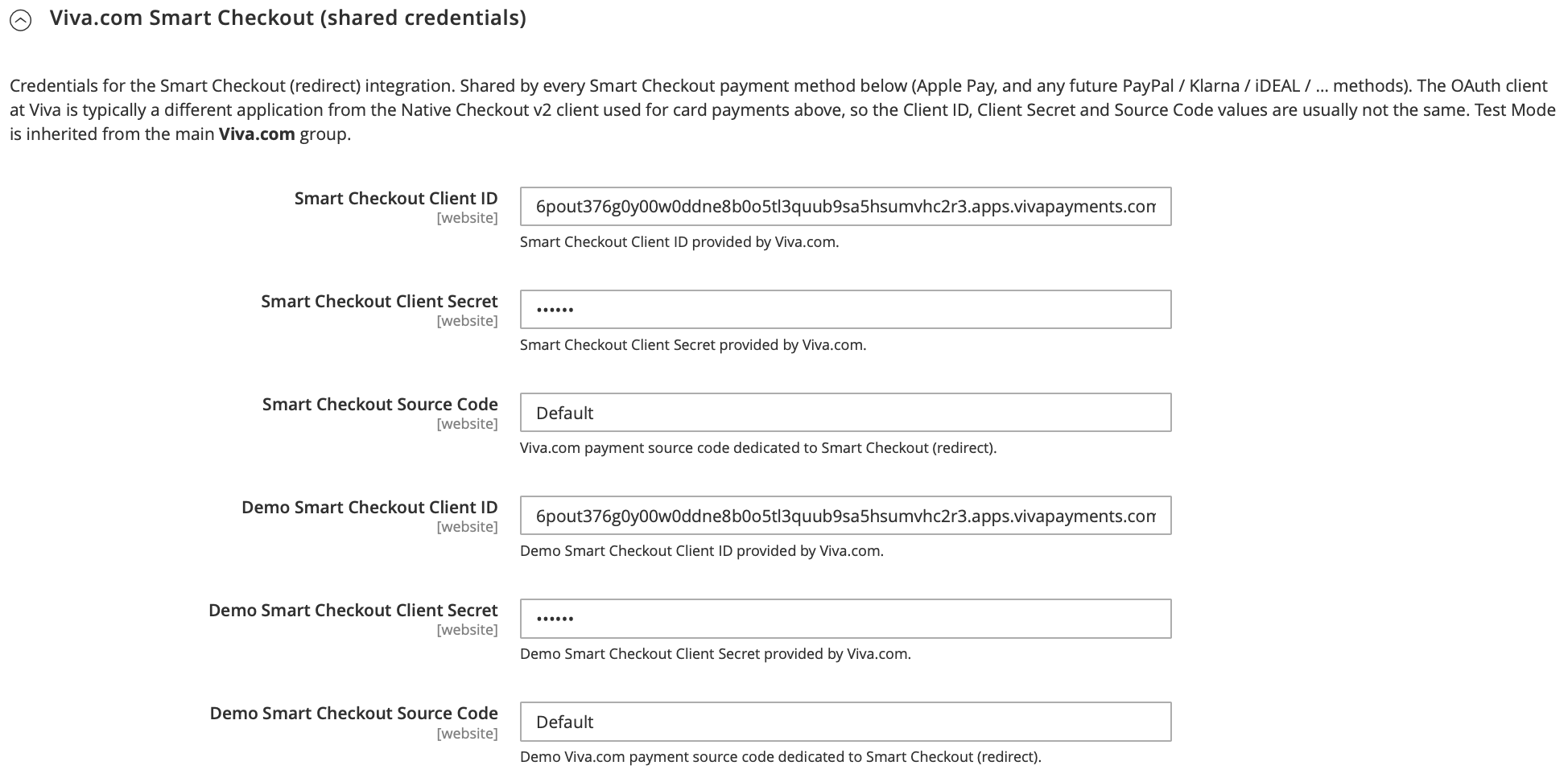
Enter the Smart Checkout credentials for the active environment. Please note, test mode is inherited from the main Viva.com section.:
- Smart Checkout Client ID
- Smart Checkout Client Secret
- Smart Checkout Source Code
- Demo Smart Checkout Client ID
- Demo Smart Checkout Client Secret
- Demo Smart Checkout Source Code
Open each Smart Checkout payment method you want to offer and configure:
- Enabled
- Title
- Sort Order
- Payment from Applicable Countries
- Payment from Specific Countries
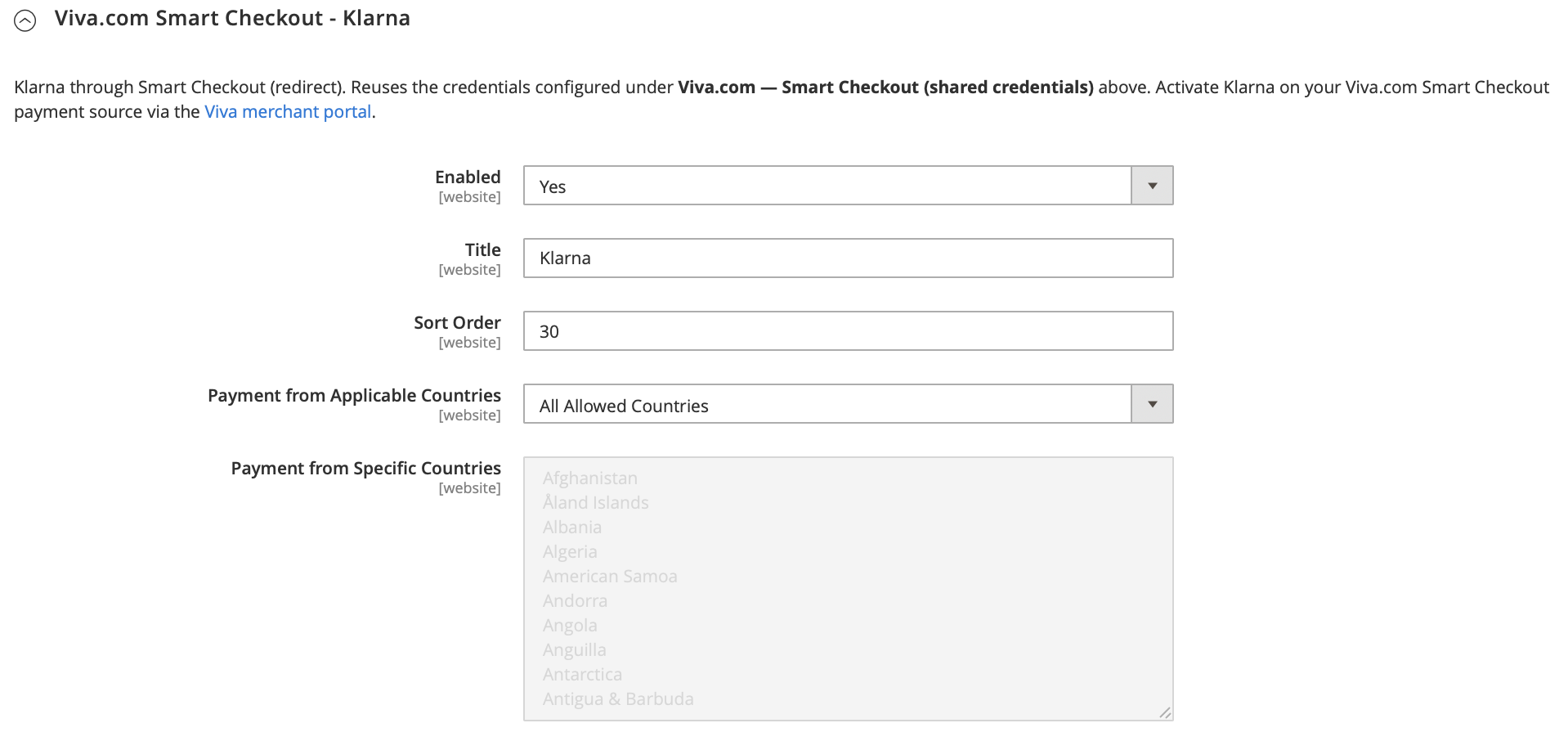
- Save the configuration and flush the cache.
Step 4: Configure Apple Pay
Viva.com - Apple Pay runs on the Magento checkout page and reuses the credentials and Source Code from the main Viva.com card section.
- Enable Apple Pay for the Viva source used by the card integration.
- In Magento Admin, open Payment Methods > Viva.com - Apple Pay.
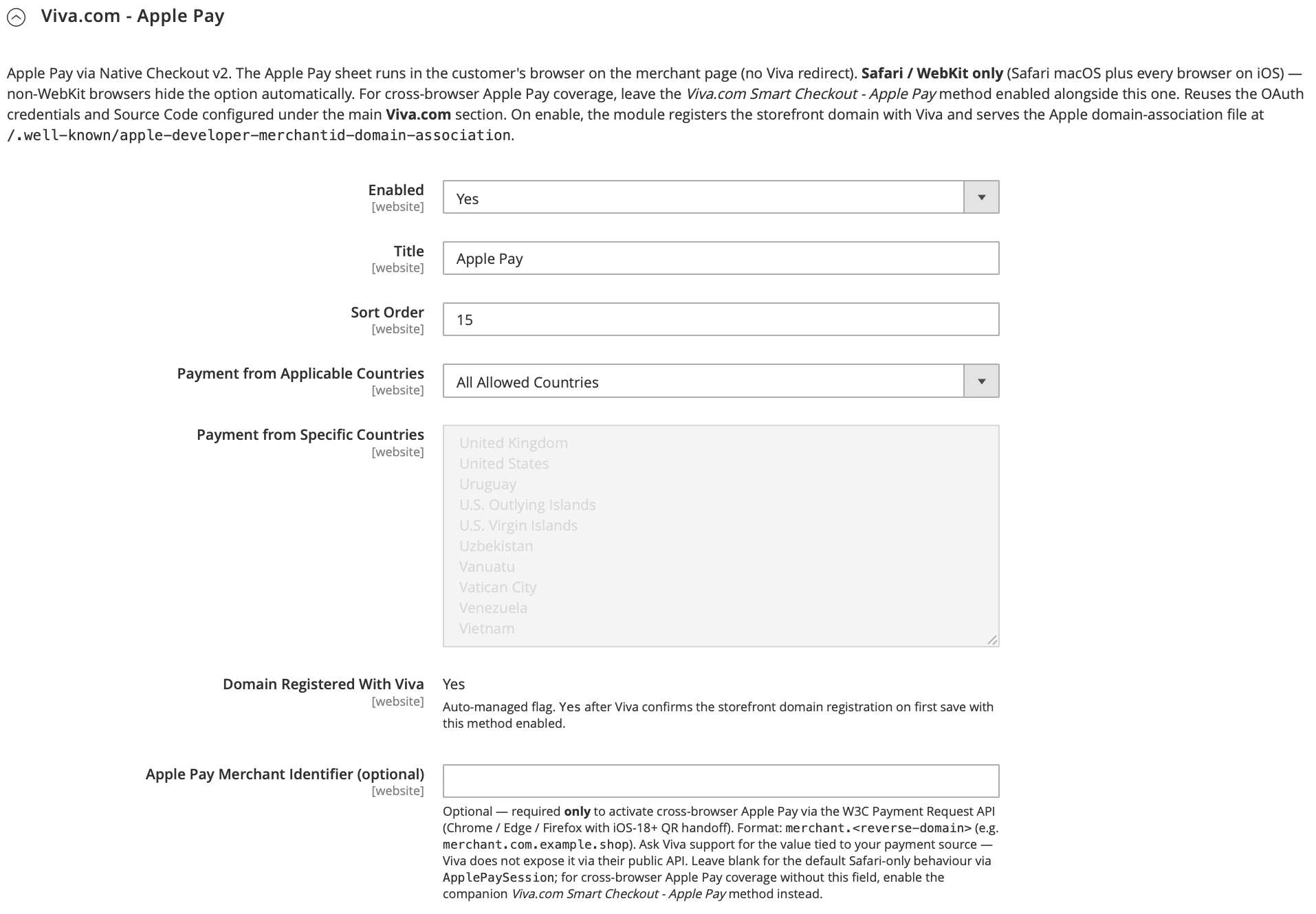
Configure the available fields:
- Enabled: Set to Yes to enable the method.
- Title: Customer-facing payment method name.
- Apple Pay Merchant Identifier (optional): Used by the plugin’s Payment Request path for compatible third-party browsers. Use the identifier associated with your Viva/Apple Pay setup. Leave it blank if you are only using the Apple Pay session path.
- Sort Order: Position in the checkout payment list.
- Payment from Applicable Countries / Payment from Specific Countries: Optional billing-country restrictions.
- Domain Registered With Viva: Read-only status managed by the module.
Save the configuration and flush the cache.
When Apple Pay is enabled, the module attempts to register the storefront domain with Viva. It also serves the Apple domain-association content at:
https://<your-domain>/.well-known/apple-developer-merchantid-domain-association
Refunds
Card payments are configured for online full and partial refunds through Magento credit memos.
To issue a card refund:
- Open the paid order in Magento Admin.
- Open the invoice.
- Create a credit memo for the full amount or the amount to be refunded.
- Submit the refund online.
Credit memo in Magento Admin:
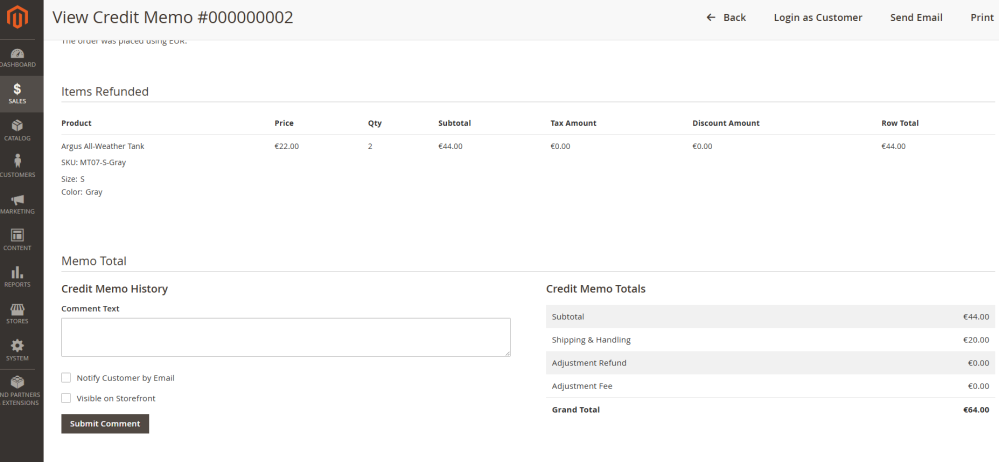
Magento handles the order and invoice state changes after a successful gateway refund.
Multisite and configuration scope
The plugin can be installed once and configured differently per Magento Website. The payment configuration fields are available at Default and Website scope, but not at Store View scope in the supplied system.xml.
To configure a website separately:
- Open Stores > Configuration > Sales > Payment Methods.
- Change the scope selector to the required Website.
Configuration scope selector in Magento Admin:

- Clear the inherited setting for the fields you want to override.
- Enter the credentials, Source Code and payment-method settings for that Website.
- Save and flush the cache.
Troubleshooting
- Viva payment methods do not appear: confirm the method is enabled, the order currency is in the plugin’s supported currency list, and any country restrictions allow the customer’s billing country.
- Authentication errors: confirm that you entered the correct demo or live credentials for the selected Test Mode. Native Checkout and Smart Checkout use separate configuration groups.
- Smart Checkout returns but the order stays in Pending Payment: check the success URL, the
ttransaction parameter andvar/log/vivawallet.log. - Apple Pay is not shown: confirm the method is enabled, the storefront is HTTPS, the domain is registered, the browser/device supports Apple Pay.
- Apple Pay on more browsers is not available: confirm that the Apple Pay Merchant Identifier is configured and that the customer’s environment supports Apple’s third-party browser flow.
- Domain Registered With Viva stays No: confirm Apple Pay is active for the configured Viva source, then save the payment configuration again. For multisite installations, test each website domain separately.
- Debugging API failures: temporarily enable Debug Mode and review
var/log/vivawallet.log. Disable Debug Mode again when troubleshooting is complete. - PHP errors: verify your PHP configuration against Magento’s PHP requirements.
- Redeploy static files:
bin/magento setup:static-content:deploy -f
Upgrading the plugin
- To check the installed Viva plugin version, open:
app/code/Redkiwi/VivaWallet/composer.jsonThe installed version is shown in theversionfield. - Review the Release Notes for a newer Magento plugin release.
- Download the current plugin archive and replace the contents of
app/code/Redkiwi/VivaWalletwith the new release. Run:
bin/magento module:enable Redkiwi_VivaWalletbin/magento setup:upgradebin/magento setup:di:compilebin/magento cache:flush- For production deployments:
bin/magento setup:static-content:deploy -f
Get Support
If you need help with Viva account activation, payment-method eligibility or credentials, see Contact & Support.
For plugin issues, include the Magento version, PHP version, plugin release version, affected payment method, Viva correlation/event ID when available, and relevant entries from var/log/vivawallet.log. Remove secrets and sensitive payment data before sharing logs.