
Configure User Roles
How to configure user roles in the viva banking app.
Available User Roles
Please see below each of the available User Roles and the permissions given to each role. A user can be assigned multiple roles, as needed:
- View Balance
- Allow PayOut
- Allow Refunds
- Make Sales
- Manage Account
- Send Money
- Manage Employee Cards
- Allow Virtual Terminal
- Allow OCT
- Allow Bill Payment
View Balance
 | Can see Dashboard, Accounts, Sales & Reports menus (and the Sales Transactions submenu only) |
| Can see Create Card & Activate Card options and Viva Account ID |
| Can see Send Money and Deposit Money options at the top of the screen |
| Can see Balance of account |
Allow PayOut
| Can see Dashboard & Sales menus (and the Sales Transactions submenu only) |
| Can see Create Card & Activate Card options |
 | Cannot see Payment/transfer options at the top of the screen |
| Cannot see Balance of account |
- Betting companies (MCC 7995) can utilise OCT functionality
- Other companies (non-betting / non-7995) can utilise standard refunds
If a non-7995 company needs to be able to refund more than the initial transaction, they should request PayOut functionality from their sales representative
Allow Refunds
| Can see Dashboard & Sales menus (and the Sales Transactions submenu only) |
| Can see Create Card & Activate Card options |
| Cannot see Payment/transfer options at the top of the screen |
| Cannot see Balance of account |
Make Sales
| Can see Dashboard & Sales menus (and the Sales Transactions and Online Payments submenus) |
| Can see Create Card & Activate Card options |
| Can see Request Money option at the top of the screen |
| Cannot see Balance of account |
Manage Account
| Can see Dashboard, Sales, Beneficiaries & Settings menus (and submenus) including the Users submenu - under Settings - which allows for the creation of additional child users |
| Can see Create Card & Activate Card options |
| Cannot see Payment/transfer options at the top of the screen |
| Cannot see Balance of account |
Send Money
| Can see Dashboard & Sales menus (and the Sales Transactions submenu only) |
| Can see Create Card & Activate Card options |
| Cannot see Payment/transfer options at the top of the screen |
| Cannot see Balance of account |
Manage Employee Cards
| Can see Dashboard, Cards & Sales menus (and the Sales Transactions submenu only) |
| Can see Create Card & Activate Card options and Viva Employee Debit |
| Cannot see Payment/transfer options at the top of the screen |
| Cannot see Balance of account |
Allow Virtual Terminal
| Can see Dashboard & Sales menus (and the Sales Transactions submenu only) |
| Can see Create Card & Activate Card options |
| Cannot see Payment/transfer options at the top of the screen |
| Cannot see Balance of account |
Allow OCT
| Can see Dashboard & Sales menus (and the Sales Transactions submenu only) |
| Can see Create Card & Activate Card options |
| Cannot see Payment/transfer options at the top of the screen |
| Cannot see Balance of account |
Allow Bill Payment
| Can see Dashboard & Sales menus (and the Sales Transactions submenu only) |
| Can see Create Card & Activate Card options |
| Cannot see Payment/transfer options at the top of the screen |
| Cannot see Balance of account |
How to assign User Roles
You can create additional users – and assign User Roles to these users – within your Viva self-care account, by following the steps below.
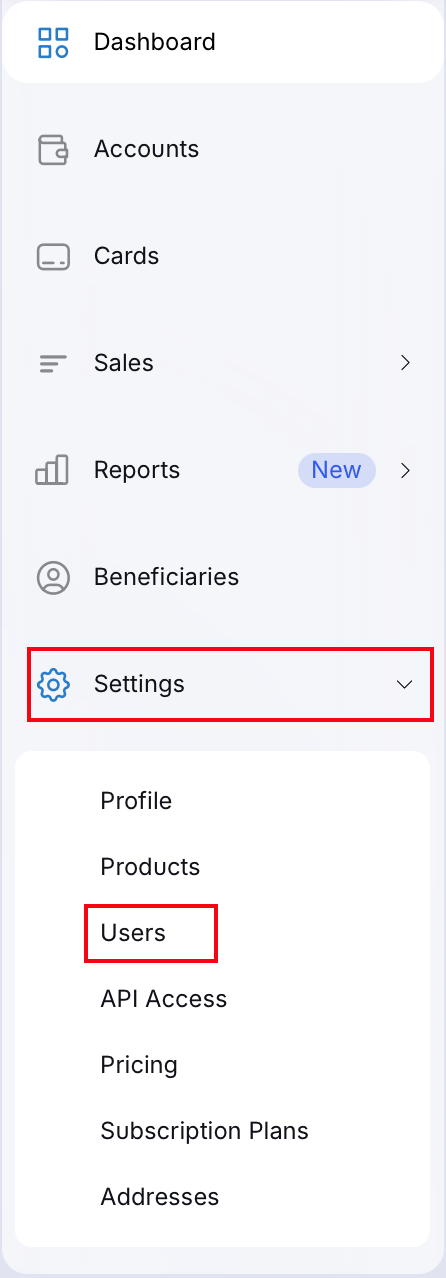
1) Within your self-care account, navigate to Settings > Users:
2) Click on the New User button at the top-right of the screen:

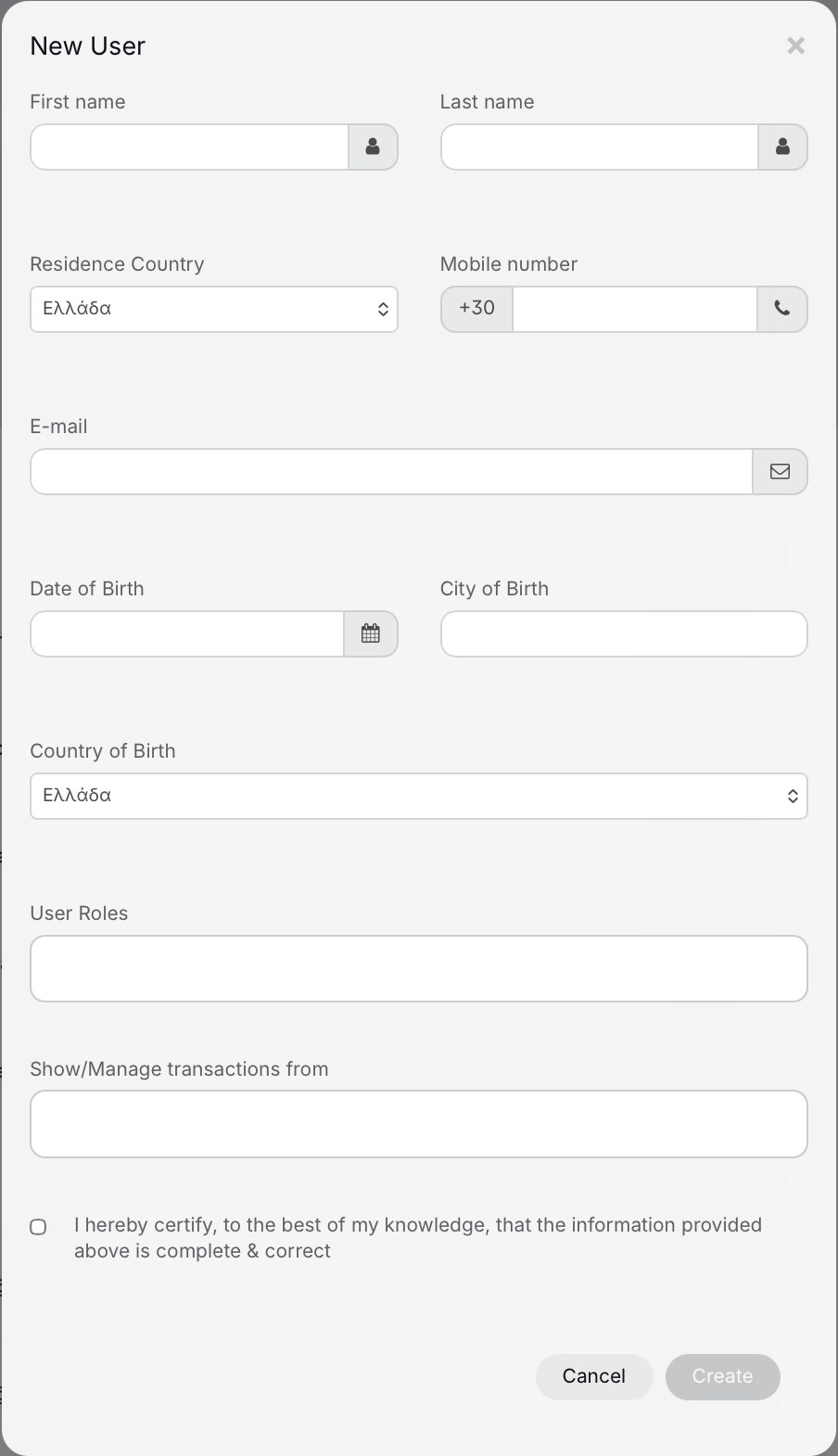
3) You will then see the New User pop-up window. Here, you can fill in the user’s personal information, as well as selecting their assigned User Roles:
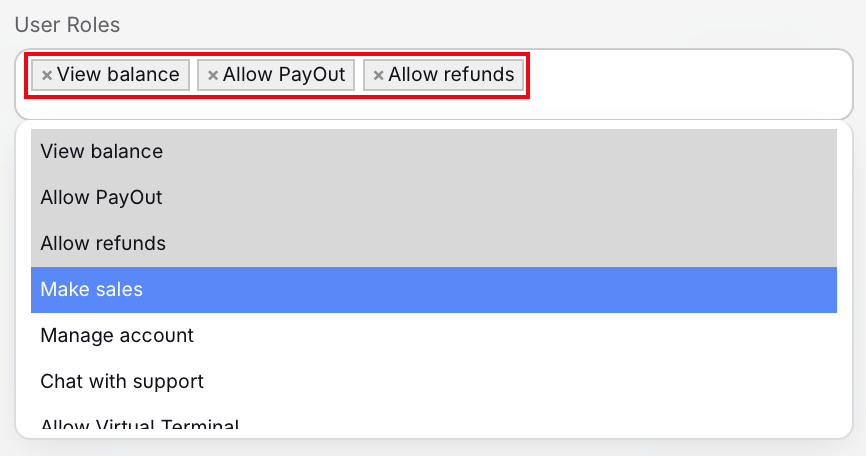
4) The User Roles dropdown allows you to select multiple options, as needed:
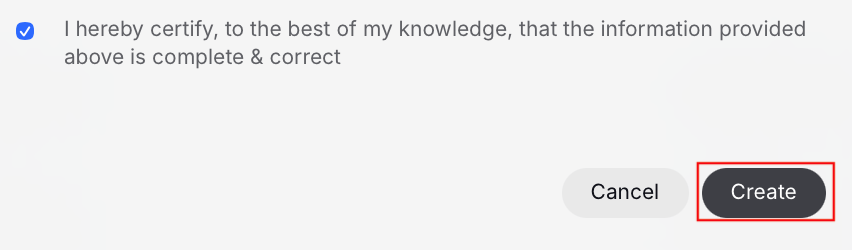
5) When you have completed all of the fields, simply click on the Create button at the bottom-right of the pop-up window to save the new user:
Get Support
If you would like to integrate with Viva, or if you have any queries about our products and solutions, please see our Contact & Support page to see how we can help!